
With Hosted SMS, MyRepChat handles texting for your existing landline or VoIP number. Your calls aren't affected and will keep ringing through to that line. You set this up during sign-up, and you'll need to be near the phone you're enabling.
Before you start
Make sure you:
- Are near the phone and can answer a call on it
- Know the billing address for the phone
- Know the email address of the person authorized to make changes to the phone line
- Can complete the whole process at once. If you can't, cancel and log in again later.
Steps to text-enable your landline
-
On the sign-up page, enter your email and create a password.
-
Check the box to agree to the Terms of Use, then click Next. Fields marked with an asterisk (*) are required.
-
Fill out the required information and click Next. Choose Enable my landline number instead of a MyRepChat number.
-
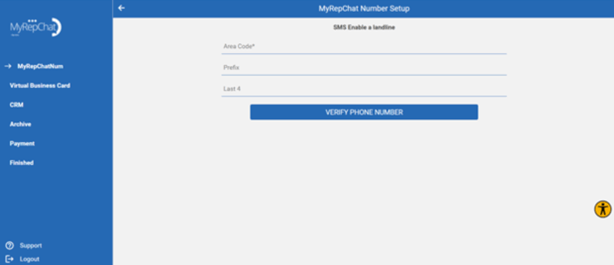
Enter your landline or VoIP number to check whether it can be used, then click Verify Phone Number.
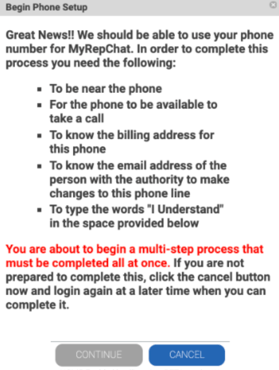
If your number is eligible, a Begin Phone Setup window explains what you'll need. Read it carefully, type I Understand, and click Continue.
-
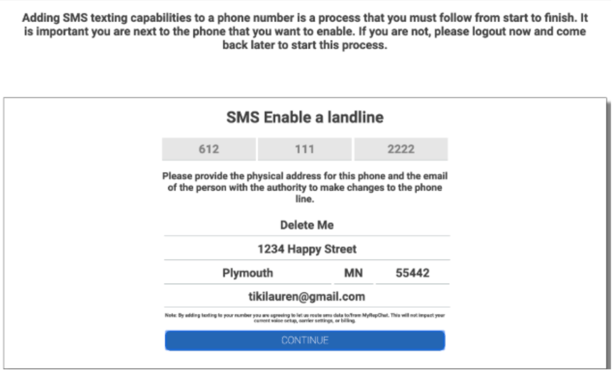
Enter the physical address for the phone and the email address of the person authorized to make changes to the line, then click Continue.
-
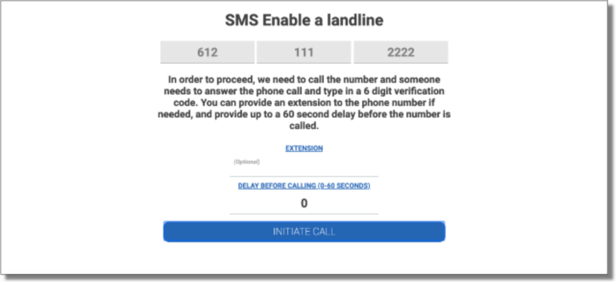
MyRepChat will call your landline to verify that the number belongs to you. If needed, add an extension or a delay of up to 60 seconds before the call, then click Initiate Call.
-
A 6-digit verification code appears on your screen. Answer the call and enter the code on your phone's keypad when prompted. Don't click Continue until the automated voice confirms your verification is complete. Missed the call? Go back and try again, up to 3 attempts.
Note: The code shown in this screenshot is an example. Never use it for your actual verification call.
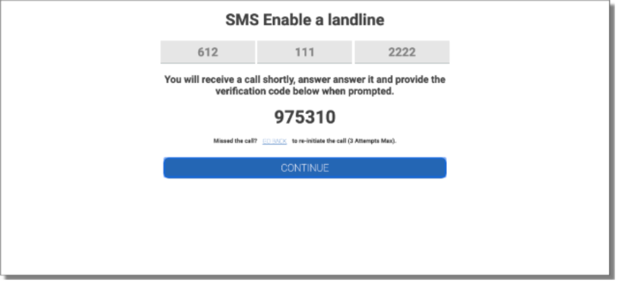
- Once your number is verified, click Continue.
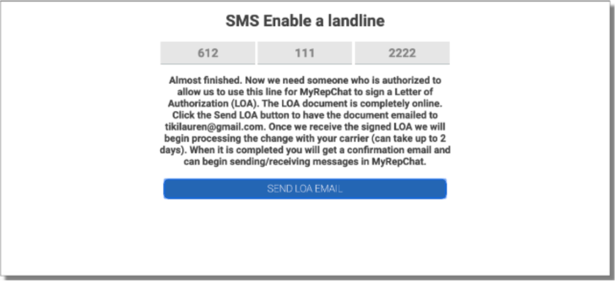
- Click Send LOA Email to send the Letter of Authorization (LOA). The LOA should ideally be signed by the owner of the number or phone account, but anyone with permission to authorize changes to the line can usually complete it.
After you submit the LOA
Once MyRepChat receives the signed LOA, processing with your carrier can take up to 2 days. You'll get a confirmation email when it's complete, and you can start sending and receiving messages.
Didn't finish the setup?
If you close the window or log out before completing these steps, the setup flow won't appear again when you log back in. Instead, complete the Letter of Authorization form. You can also use this form whenever an LOA is needed outside of sign-up.
Note: If you change phones or voice providers later, texting may be interrupted.