
Your Contacts list shows each contact's consent status, so you know where you stand before reaching out. You can also sort and filter the list and quickly take action on any contact.
How do I sort contacts on the web app?
-
In the left menu, select Contacts.
-
Select First Name or Last Name at the top of the list. An up arrow means the list is sorted A to Z.
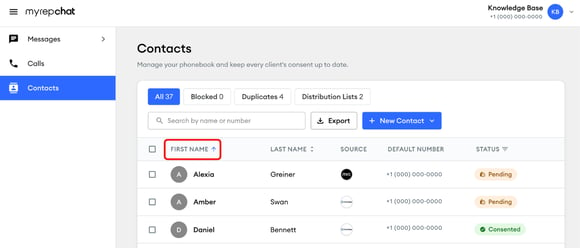
-
Select it again to sort Z to A. A down arrow appears.
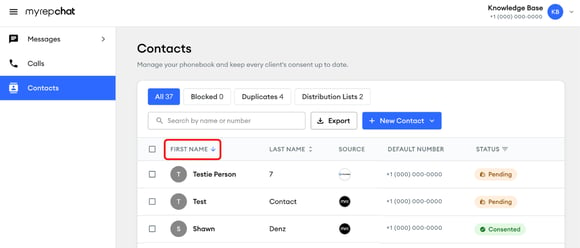
To return to the default order, leave Contacts and open it again.
How do I filter contacts by consent status on the web app?
-
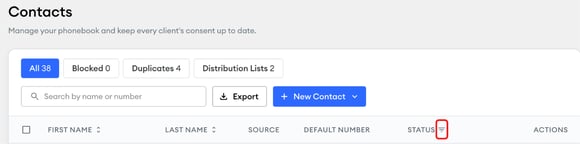
Select the filter icon next to Status at the top of the Contacts list.
-
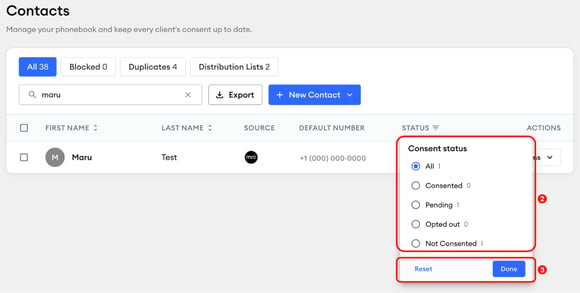
Under Consent status, choose All, Consented, Pending, Opted out, or Not Consented. The number next to each option shows how many contacts have that status.
-
Select Done. To clear the filter, select Reset.
How do I sort contacts on the mobile app?
-
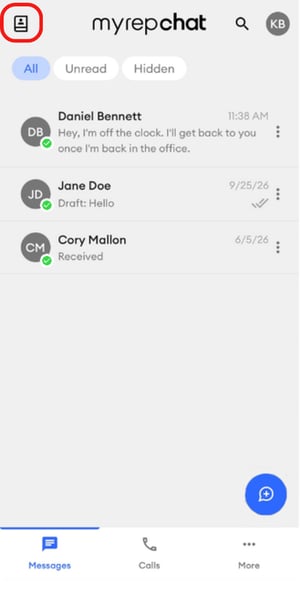
On the Messages or Calls screen, tap the Contacts icon in the upper left.
-
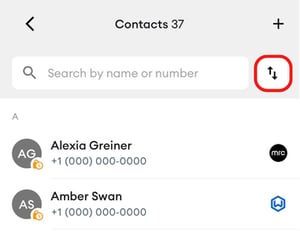
Tap the sort icon next to the search bar.
-
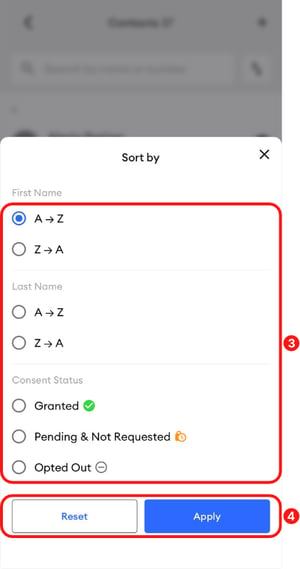
Under Sort by, choose how to sort:
-
First Name: A to Z or Z to A
-
Last Name: A to Z or Z to A
-
Consent Status: Granted, Pending & Not Requested, or Opted Out
-
-
Tap Apply. To clear your choice, tap Reset.
How do I see a contact's consent status?
If your group uses positive consent, your group administrator sets it up, and MyRepChat shows each contact's consent status in two places:
-
In the Status column on the web app's Contacts list, such as Consented or Pending.
-
As small icons on contact avatars, so you can check consent at a glance.
 |
Green checkmark — Consent granted. This contact has agreed to receive messages from you, so you're clear to message them. |
 |
Gold clock — Consent pending. A consent request was sent, but the contact hasn't responded yet. Follow up if needed, but hold off on messaging until they confirm. |
 |
Red circle with a slash — Contact Blocked. You can't send or receive messages or calls from this contact. |
 |
Gray dash — Opted out. This contact has opted out of receiving messages entirely. They will not receive any communications from you. |
|
|
No icon — Consent not required. Consent isn't required for this contact. |
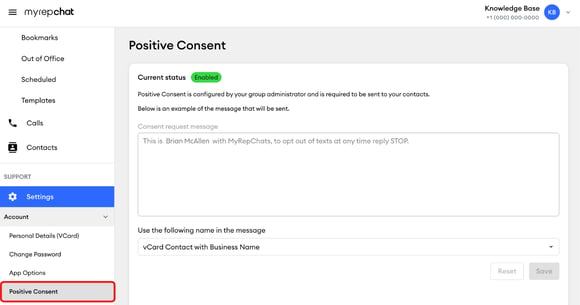
To check whether positive consent is on for your account, go to Settings > Account > Positive Consent. If your group doesn't use positive consent, the consent icons don't appear, and the Status column doesn't apply to you.
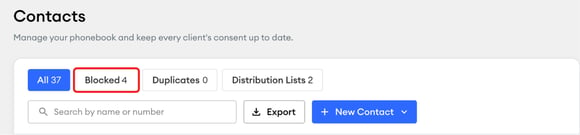
To see contacts you've blocked, select the Blocked tab at the top of the Contacts list on the web app.
Why does consent status matter?
Following messaging consent rules is essential for advisors. Checking a contact's status before you message them helps you stay compliant.
What can I do from the Actions menu?
On the web app, select Actions next to any contact to choose an option: Message, Call, Reconnect to CRM, Opt out, or Delete.
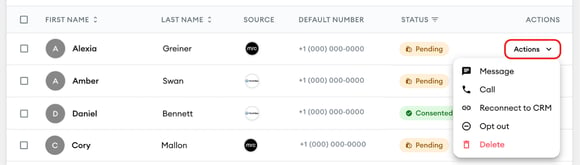
The Source column shows whether a contact was added in MyRepChat or comes from your CRM.