There are two ways to get notified of incoming MyRepChat messages on your computer:
Email notifications: set up an auto response that emails you every time a text comes in. See How do I set up email notifications for incoming messages? for the steps.
Browser notifications: get an alert on your computer, even when the MyRepChat tab is closed. Follow the steps below.
How do I turn on browser notifications in MyRepChat?
-
In the left menu, select Settings > Preferences > Notifications.
- Under This browser, turn on the toggle.
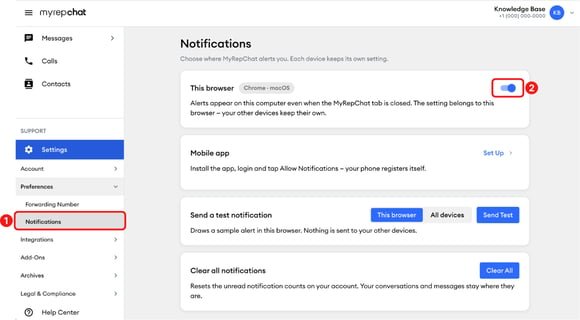
The setting belongs to the browser you're using. If you use MyRepChat on another computer or browser, turn it on there too.
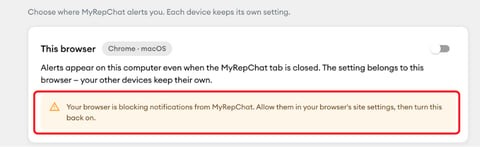
If you see "Your browser is blocking notifications from MyRepChat," allow notifications in Chrome and on your computer, using the steps below. Then turn the toggle back on.
How do I allow MyRepChat notifications in Chrome?
-
In Chrome, select the three dots in the top right corner, then Settings.
-
Select Privacy and security > Site settings.
-
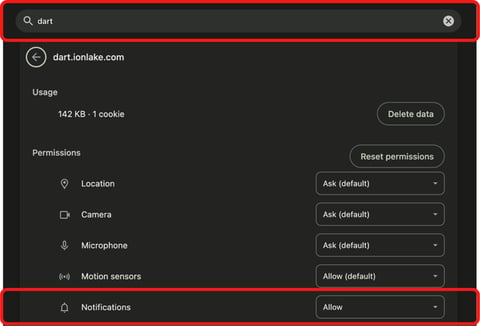
Search for dart, then select dart.ionlake.com.
-
Next to Notifications, select Allow. Chrome saves the change automatically.
How do I allow Chrome notifications on my computer?
On a Mac:
-
Choose the Apple menu > System Settings.
-
Select Notifications.
-
Under Application Notifications, select Google Chrome.
- Turn on Allow notifications.
On Windows 11:
-
Open Settings.
-
Select System > Notifications.
-
Under Notifications from apps and other senders, turn on Google Chrome.
On Windows 10:
-
Open Settings.
-
Select System, then Notifications & actions.
-
Under Get notifications from these senders, turn on Google Chrome.
How do I test notifications?
-
On the Notifications page, under Send a test notification, choose where to send it:
-
This browser: shows a sample alert in this browser only. The This browser toggle must be on.
-
All devices: sends a real notification to every device registered to your account. While the MyRepChat tab is open, it shows as a message in the app.
-
-
Select Send Test.

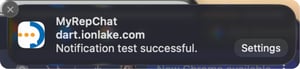
If everything is set up, you'll see an alert from MyRepChat that says "Notification test successful."
For notifications on your phone, see the Mobile app notifications guide.
How do I clear notifications?
To reset the unread notification counts on your account:
-
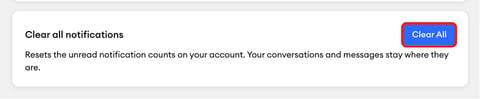
Select Clear All under Clear all notifications.
-
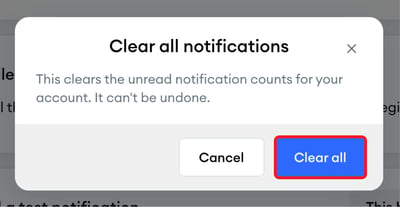
Select Clear all in the pop-up to confirm. This can't be undone. Your conversations and messages stay where they are.