
There are three ways to send a text message in MyRepChat: start a new message, send from Contacts, or continue an existing conversation.
Option 1: Start a New Message
- In the left menu, click Messages.
- Click the blue new message button to the right of Search conversations.
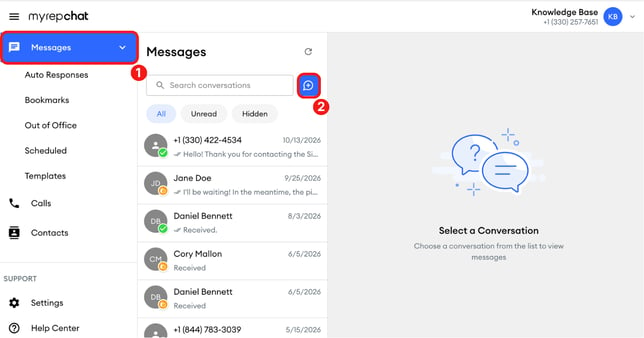
- In the New message panel, find the contact. Type their name or phone number in the search field, or scroll the Contacts list.
.png?width=670&height=350&name=1%20(2).png)
- Click the contact to open the conversation.
.png?width=670&height=344&name=1%20(12).png)
- Type your message in the Type a message... field, then click the send button (paper airplane icon) to the right of the field.
.png?width=640&height=73&name=1%20(4).png)
Option 2: Send From Contacts
- In the left menu, click Contacts.
- Use Search by name or number to find the contact.
.png?width=670&height=294&name=1%20(5).png)
- Click Actions on the contact's row
.png?width=670&height=294&name=1%20(7).png)
- Select Message.
-1.png?width=670&height=294&name=1%20(8)-1.png)
- The conversation opens in Messages. Type your message and click the send button.
.png?width=670&height=323&name=1%20(9).png)
Option 3: Continue an Existing Conversation
-
In the left menu, click Messages.
-
Click the conversation in the list. You can also type a name or number in Search conversations to find it.
.png?width=670&height=351&name=1%20(10).png)
-
Type your message and click the send button.
What if the contact hasn't consented yet?
If a contact hasn't consented to receive texts, you'll see this banner above the message field: "Consent required – send the consent request before messaging this contact."
The consent request is already filled in the message field. It asks the contact to reply with the keyword ACCEPT. Click the send button to send it.
.png?width=670&height=525&name=1%20(11).png)