
What is a Distribution List?
A distribution list lets you send one message to multiple contacts at once. Each person receives it as an individual conversation, so recipients can't see messages or replies from others on the list.
Important information: Broker-dealers can set limits on the size of distribution lists. Check your broker-dealer's or group's guidelines before sending.
Best practice: We recommend limiting lists to 100 people or fewer and sending no more than 200 texts per day. Phone carriers decide which numbers to flag as spam, so these limits are general guidance.
How Do I Send a Message to a Distribution List?
Option 1: From Messages
-
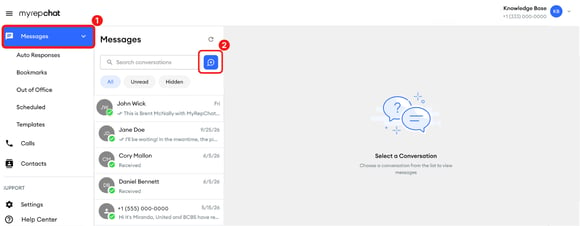
In the left menu, click Messages.
-
Click the new message button next to the search bar.
-
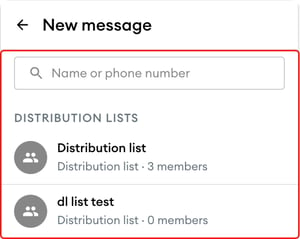
Under Distribution Lists, select the list, or type its name in the search bar.
-
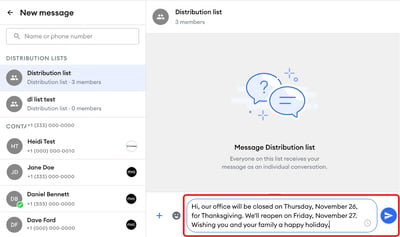
Type your message, then click the send icon.
Option 2: From the Distribution Lists tab
-
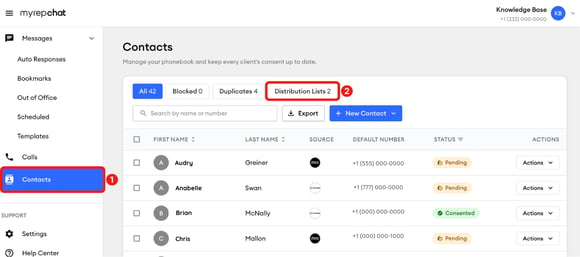
In the left menu, click Contacts.
-
At the top of your contacts list, click Distribution Lists.
-
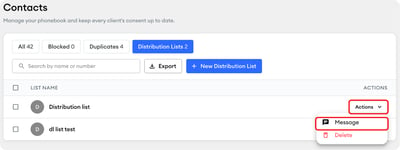
Click Actions next to the list, then select Message.
-
Type your message, then click the send icon.
Option 3: From the list's page
-
In the left menu, click Contacts.
-
At the top of your contacts list, click Distribution Lists.
-
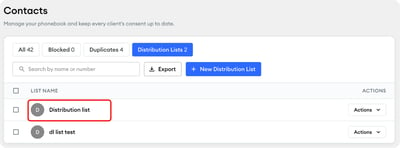
Click the name of the list.
-
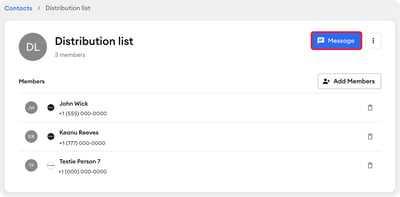
Click Message in the upper-right corner.
-
Type your message, then click the send icon.