To make calls, you need the Voice Add-On. Calls from the web app connect through your forwarding number, and your contact sees your MyRepChat number.
How do I call a number?
-
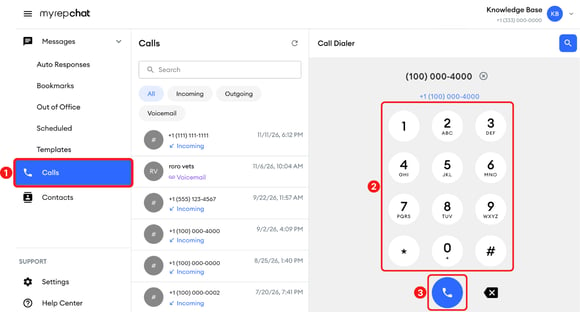
In the left menu, click Calls.
-
In the Call Dialer, type the number or use the keypad.
-
Click the call button.
-
If your computer asks to open another app, like Phone or Phone Link, click Cancel. MyRepChat places the call for you.
-
Answer the call on your forwarding number's phone. You'll hear "One moment, connecting" while MyRepChat calls your contact.
How do I call a contact?
-
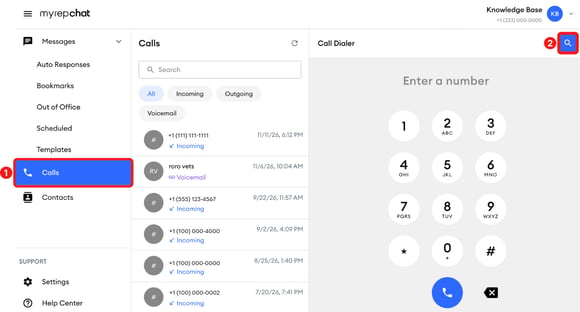
In the left menu, click Calls.
-
In the upper-right corner of the Call Dialer, click the search icon.
-
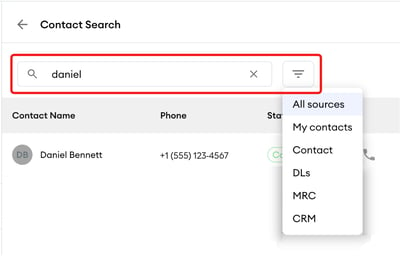
Type the contact's name or number, entering at least 2 characters, and press Enter to search. To narrow the results, click the filter icon and choose a source.
-
Click the phone icon next to the contact.

-
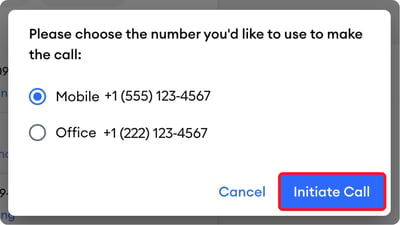
Choose the number you want to call, then click Initiate Call.
-
If your computer asks to open another app, click Cancel. Then answer the call on the phone associated with your forwarding number to connect.
How do I view my calls?
-
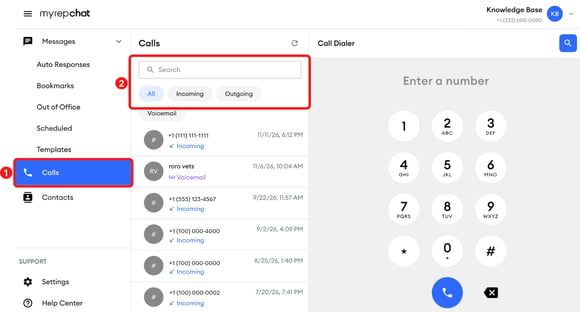
In the left menu, click Calls.
-
To filter your calls, click All, Incoming, Outgoing, or Voicemail. To find a specific call, use the search bar.
-
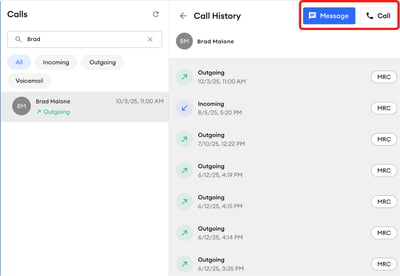
Click a call to open its Call History. It lists all your calls with that contact or number, with the date and time of each. From there, you can also click Message or Call.
How do I listen to a voicemail?
-
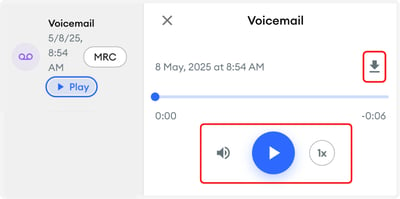
In Call History, click Play next to the voicemail.

-
In the Voicemail panel, click the play button. You can adjust the volume and playback speed. To save the recording, click the download icon.