
Integrating with Office 365 lets you import your contacts into MyRepChat and send your messages back to your CRM as notes. CRM settings are managed in the MyRepChat web app.
See How Do I Import Contacts From My CRM? for general CRM integration features and behavior that apply across providers.
How Do I Set Up the Integration?
-
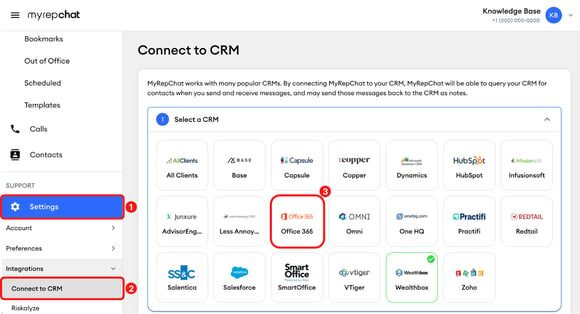
In the left menu, click Settings.
-
Under Integrations, click Connect to CRM.
-
Under Select a CRM, select Office 365.
-
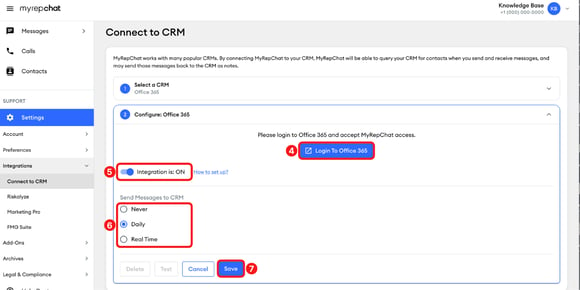
Under Configure: Office 365, click Login To Office 365. Sign in to your Office 365 account, then accept MyRepChat access.
-
Make sure the Integration is toggle is on. We recommend leaving it on while you use your CRM. When it's off, the connection stays, but MyRepChat doesn't use it.
-
Under Send Messages to CRM, choose when your messages are sent to your CRM as notes:
-
Never: Messages aren't sent to your CRM.
-
Daily: Messages are sent once a day.
-
Real Time: Messages are sent as they happen.
-
-
Click Save.
-
After you save, the Test button becomes available. Click Test to check the connection. A successful test means MyRepChat can communicate with Office 365. If something still isn't working, check with your CRM administrator about permissions and database sharing.

After you connect, your contacts don't appear in MyRepChat automatically. Search for and import them from your CRM. When you start a new message, your search also includes your CRM contacts.