- This feature is only available to users with the Voice Add-On enabled.
- A forwarding number must be configured in your account before you can record a voicemail greeting.
What Types of Voicemail Greetings Are There?
You can create two types of voicemail greetings in MyRepChat:
-
Default Voicemail: Plays when a caller reaches your voicemail because you didn't answer.
-
Unavailable: Plays when your phone is off, in airplane mode, or out of signal.
You can only save one greeting per type. If you record a new greeting for a type that already has one, it will replace the existing recording.
Record a Voicemail Greeting on Mobile
-
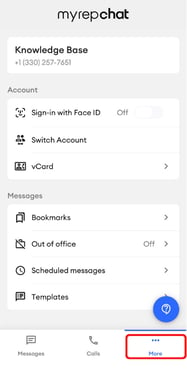
Tap the More tab in the bottom navigation bar.
-
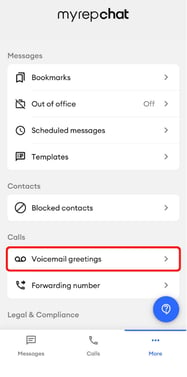
Select Voicemail Greetings.
-
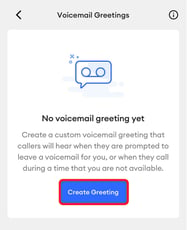
If you haven't recorded a greeting yet, tap Create Greeting. If you already have one and want to add another, tap + Create new greeting.
-
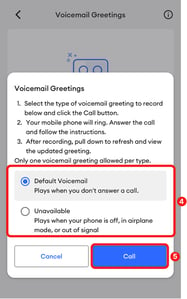
Select the greeting type you want to record:
-
Default Voicemail: Plays when you don't answer a call.
-
Unavailable: Plays when your phone is off, in airplane mode, or out of signal.
-
-
Tap Call. Your mobile phone will ring — answer it and follow the prompts to record your greeting.
-
After recording, swipe down to refresh the screen and see your new greeting listed.
Play, Replace, or Delete a Greeting on Mobile
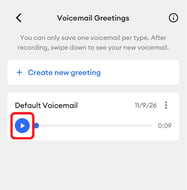
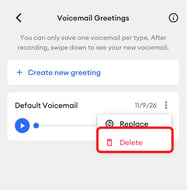
Once recorded, a greeting appears on the Voicemail Greetings screen with a playback bar and the recording date.
-
Play: Tap the blue play button to listen to your greeting.
- Replace:
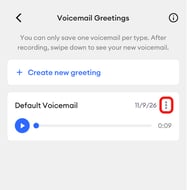
- Tap the three-dot icon next to the recording date.
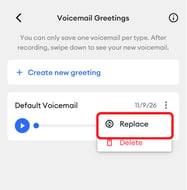
- Select Replace to re-record it.
- Tap the three-dot icon next to the recording date.
-
Delete:
-
Tap the three-dot icon next to the recording date.
-
-
-
Select Delete to remove it.
-
Record a Voicemail Greeting on Desktop
-
Log in to MyRepChat on the web.
-
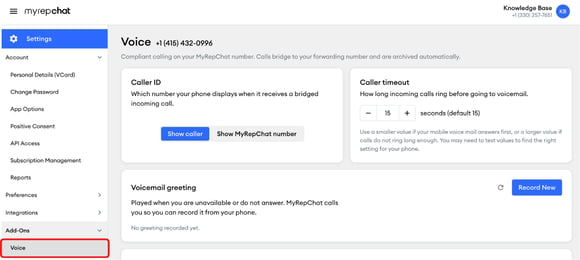
From the Dashboard, go to Settings > Add-Ons > Voice.
-
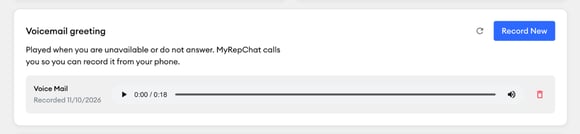
Under Voicemail greeting, click Record New.

-
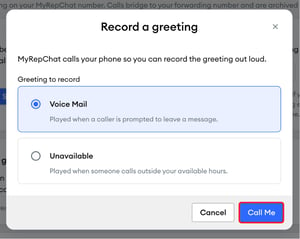
Select the greeting type you want to record from the pop-up window:
-
Voice Mail: The standard message callers hear when you don't answer.
-
Unavailable: Plays during hours you've specified as unavailable.
-
-
Click Call Me. Your forwarding number will ring — answer the call and follow the prompts to record your voicemail greeting.
- Once you've finished recording, click Done on the pop-up window.
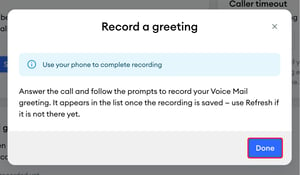
- Your new greeting will appear under Voicemail greeting. If it doesn't appear right away, refresh the page.