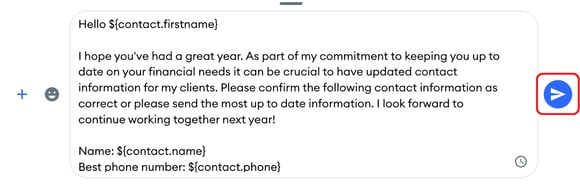
Templates let you quickly send a preset message to a contact. You can add dynamic fields, such as a contact's first name, so each message is personalized automatically.
How Do I Create a Message Template?
-
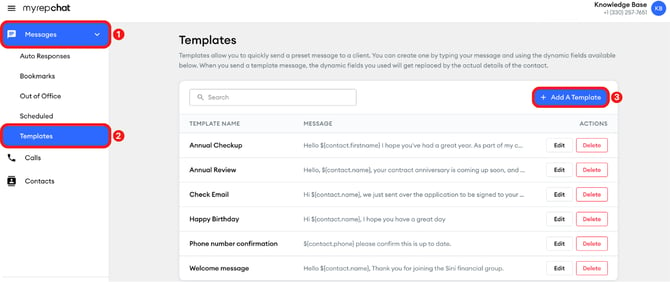
In the left menu, click Messages, then
-
Click Templates.
-
Click Add A Template.
-
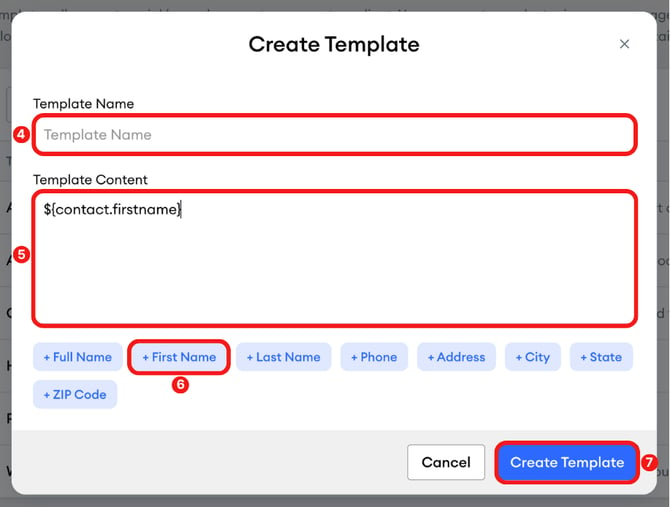
In the Create Template pop-up, type a name for your template in Template Name.
-
Type your message in Template Content.
-
To personalize your message, click a dynamic field button, such as + First Name. A code, such as ${contact.firstname}, is added to your message.
-
Click Create Template.
When you send a template, each dynamic field is replaced with the contact's details.
Which Dynamic Fields Can I Use?
You can add these dynamic fields to a template: Full Name, First Name, Last Name, Phone, Address, City, State, and ZIP Code.
How Do I Edit or Delete a Template?
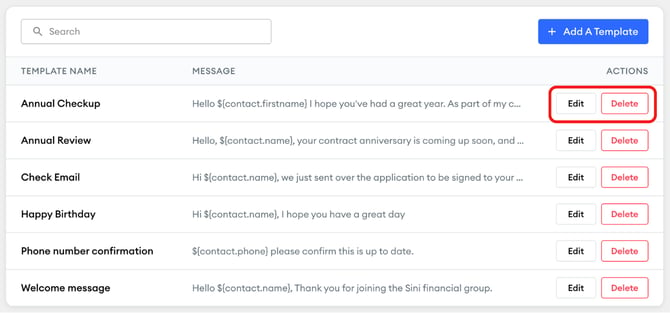
On the Templates page, click Edit or Delete next to the template.
How do I send a template?
Sending messages using templates can save you time. Follow these steps to send one.
-
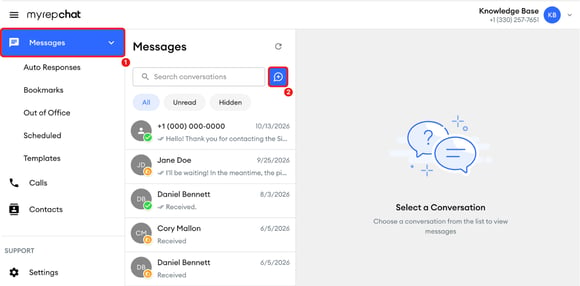
In the left menu, click Messages.
-
Click the blue new message button to the right of Search conversations to start a new message.
-
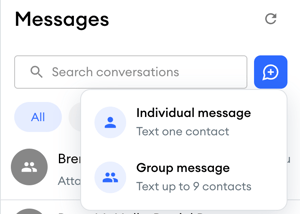
Select the type of message you want to send: Individual or Group message.
-
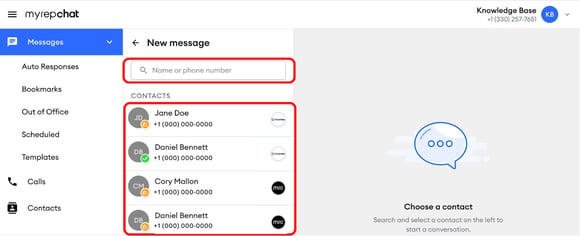
In the New message panel, find the contact(s). Type their name or phone number in the search field, or scroll the Contacts list.
-
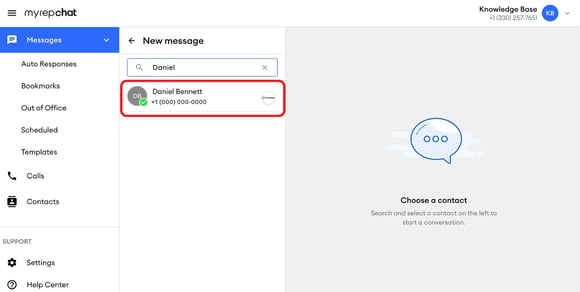
Click the contact to open the conversation.
-
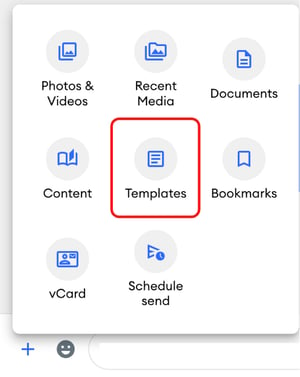
Click the blue + icon next to the message field to open the options menu.

-
Select Templates from the available options.
-
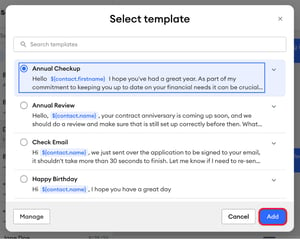
Select the template you'd like to use and click Add. The selected template will appear in the message field, where you can review or edit it before sending.
- Click the paper airplane icon to send the message.