
MyRepChat can send archive reports of your messages to an email address. Setting it up has two parts: connecting your email, then adding a schedule that tells MyRepChat when to send your archives.
How do I connect my email?
-
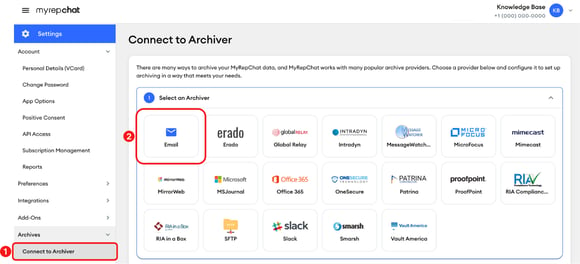
In the left menu, select Settings, then Archives, then Connect to Archiver.
-
Under Select an Archiver, select Email.
-
Under Configure: Email, enter your email address in Email Address. To send archives to more than one address, separate them with a semicolon and a space, for example: name@yourfirm.com; compliance@yourfirm.com
-
Leave Sender Address and Sender Name blank. Archive emails come from journal@mail.ionlake.com by default, and some email servers may reject a different sender as spoofing.
-
Turn on the Archiving toggle.
-
Select Save.
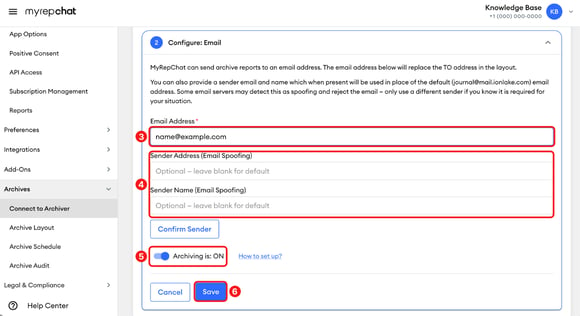
Once archiving is on, an Active label shows next to Configure: Email.

How do I set up my archiving schedule?
-
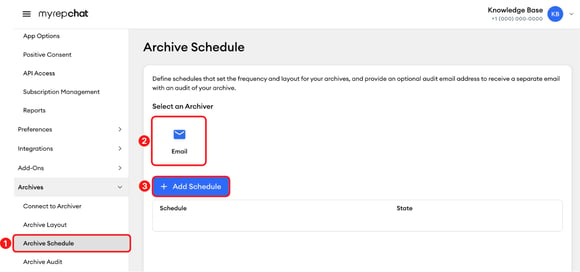
In the left menu, select Settings, then Archives, then Archive Schedule.
-
Under Select an Archiver, select Email.
-
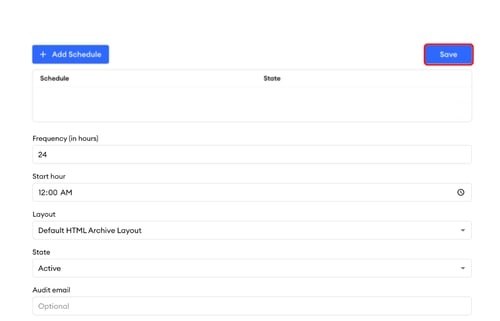
Select + Add Schedule.
-
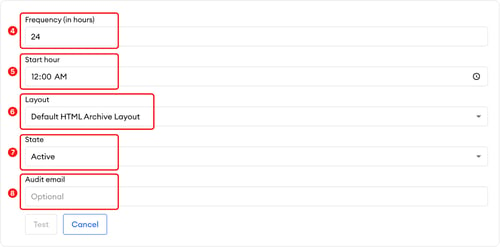
Enter the Frequency (in hours), such as 24 for once a day.
-
Choose a Start hour.
-
Choose a Layout, or keep Default HTML Archive Layout.
-
Set State to Active.
-
Optional: In Audit email, enter an address to receive a separate email with an audit of your archive.
-
Select Save.
Good to know:
-
Archiving only runs when you have an Active schedule.
-
If there's been no activity, you won't receive an archive email.
-
You can change the addresses in Email Address at any time.
-
To confirm your archives are being sent, go to Settings > Archives > Archive Audit, and select a date. You'll see the number of messages, archives, audits, and failures for that day.
To see all the archive providers MyRepChat works with, see What options do I have for archiving?