As a Compliance Admin, you can review and moderate Web Content submissions from your program's Library Cases tab. This article walks you through accessing Web Content Library cases and updating their status.
Accessing Web Content Cases
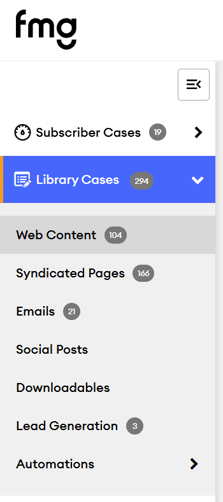
- In your Compliance Admin, select Library Cases from the left-hand navigation.
- Choose Web Content from the options.
Viewing Web Content Library Cases
Below is an example of what the Web Content Library cases page will display:
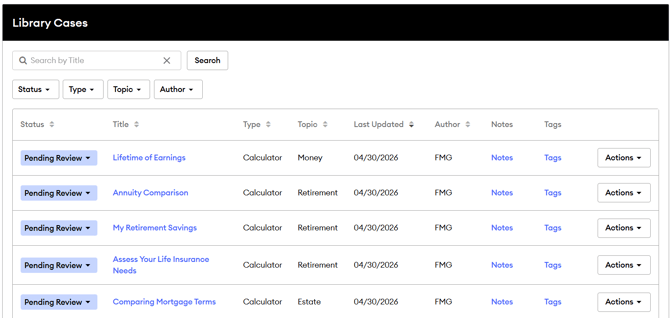
The page displays the newest cases at the top of the list by default.
Searching and Filtering
Use the search bar at the top of the page to search by title. You can also filter the list using any of the following dropdowns:
-
Status: Filter by Approved, Hidden, or Pending Review.
-
Type: Filter by content type: Articles, Calculators, Infographics, Quizzes, or Videos.
-
Topic: Filter by topic: Estate, Insurance, Investments, Lifestyle, Money, Retirement, or Tax.
-
Author: Filter by the content publisher, such as FMG or another author.
Columns
Each case displays the following information:
- Status: The current review status of the case. Select the dropdown to update the status.
- Title: The name of the content piece. Select the title to preview the content.
- Type: The content format (Article, Calculator, Infographic, Quiz, or Video).
- Topic: The subject category the content falls under.
- Last Updated: The date the case was last updated.
- Author: The publisher or creator of the content.
- Notes: Select to add or view compliance notes for this content piece. Notes are only visible to Compliance Admins and stay associated with the content.
- Tags: Select to add or view tags on the content. Tags help subscribers find content in the Content Library.
You can sort the list by any column by selecting the column header.
Actions Menu
Each case has an Actions dropdown on the right side of the grid.
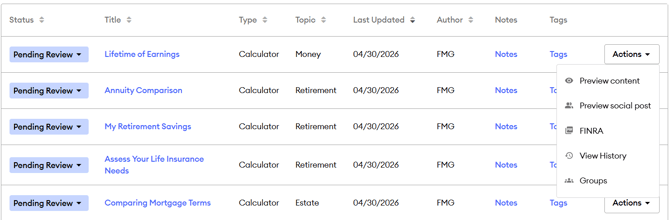
From here you can:
- Preview content: View the content as it appears to subscribers.
- Preview as social post: See how the content would appear as a social post.
- View FINRA letter: Access the FINRA letter associated with the content.
- View review history: See a log of who reviewed the content and when. This is useful when content has been updated and resubmitted, and you want to confirm who last reviewed it.
- View Content Groups: Manage which groups in your program can access this content.
Understanding Case Statuses
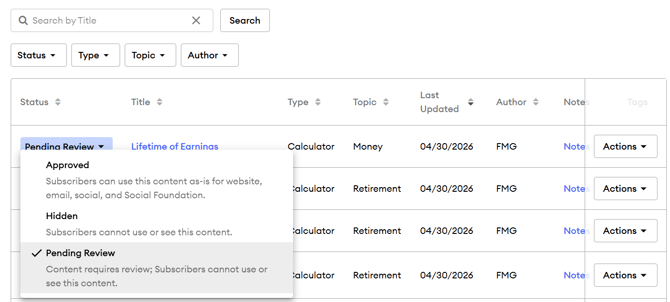
Each case includes a Status column. If your home office is not utilizing automatic approval for content with FINRA letters, then new submissions will have a Pending Review status by default, which means the content is hidden from subscribers until a decision is made.
The three available statuses are:
- Approved: Content is visible to subscribers and can be used in emails, social posts, and on websites.
- Hidden: Content is not visible to subscribers and cannot be used. Use this status to reject a submission.
- Pending Review: The default status for new Web Content submissions. Content remains hidden from subscribers until reviewed.
Updating a Case Status
- Locate the case you want to review.
- Select the Status drop-down next to the case.
- Choose the appropriate status: Approved, Hidden, or Pending Review.