
As a Publisher SuperUser Admin, you can directly manage your publishing or marketing team’s users and their associated roles. The Team Management section allows you to add or modify members, update access permissions, and impersonate users for troubleshooting purposes. This self-service functionality is available once FMG assigns you the Team Member Management role.
Accessing Team Management
- Log in to your publisher admin portal.
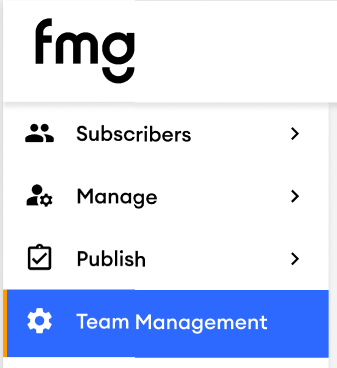
- From the sidebar, select “Team Management” to open the grid view of all publisher team members.
- Use the search bar to locate users quickly by name or email.
Adding a Team Member
To create a new publisher user:
- Select “Add a Team Member”
- Fill in the required information, including:
- Name
- Email address
- Username
- SSO ID (if applicable)
- Assign one or more roles from the available options.
- Save your changes and send the user an invite.
Editing or Removing a User
When a user’s details or access need to be updated:
- Find the user in the grid view.
- Click “Edit” to modify name, email, username, or roles.
- Use the Deactivate option to remove complete user access when necessary.
- You can also resend a login invitation or disable direct login (for SSO-only partners).
Impersonating a User
The impersonation feature provides a secure way to assist with training or troubleshooting. Select “Impersonate” beside a user’s name to view the platform from their perspective and validate permissions or configurations.