
Event Templates let your home office create pre-filled event content that your advisors can use when building a new event. Each template can include event details like the name, description, and disclosure, along with promotional email and social sequences your advisors can use to market the event.
When an advisor selects one of your templates, those details fill in automatically. The advisor adds the date and location, then submits the event for compliance review.
⚠️ Note: Event Templates are available to publishers with access.
How to Create an Event Template
- In your agency admin, click Manage, then select Event Templates.
- Click Add Event Template in the top right corner and it open the event template editor.
- Under Template Info, add a name for the template.
- You can upload a thumbnail image. This is the image advisors see when choosing a template.
💡 Thumbnail images should be 400 x 200 px. - Fill out the event details you want to pre-fill for your advisors:
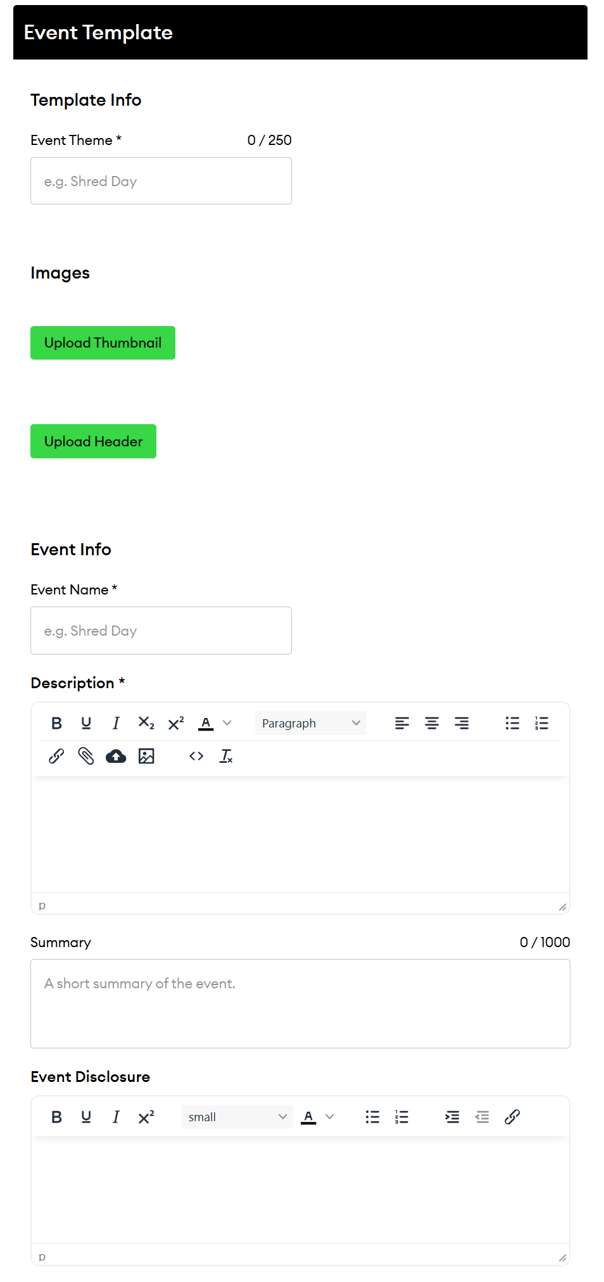
- Event Name
- Event Description
- Event Summary
- Event Landing Page Header Image (1800 x 600 px)
- Event Disclosure
- SEO Toolkit: Title Tag and Description Tag
- Click Save to save your event template.
- On the Event Templates page, check the Show box next to your template.
- Click Save at the top of the page to make the template visible to advisors in your program.
⚠️ Note: New templates won’t appear for your advisors until the Show box is checked and you click Save on the Event Templates page.
How to Add Promotional Content to an Event Template
You can link email and social sequences to a template so advisors have ready-made content to promote their event.
Step 1: Flag a sequence as event promotional content
- Open the email or social sequence you want to use in the sequence editor.
- Select the Event Promotional Content checkbox in the sequence editor.
- Publish the sequence once you're done editing.
⚠️ Note: Once a sequence is flagged as Event Promotional Content, it is hidden from the Content Library. It will only be available to advisors through the event templates it’s linked to.
Step 2: Link the sequence to your template
- Click Manage, then select Event Templates.
- Click the title of the template you want to update.
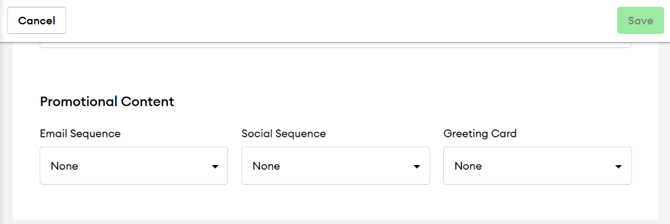
- Under Promotional Content, select the specific sequence(s) to associate with the template.
- Click Save to save your changes.
How to Hide and Reorder Event Templates
You control which templates your advisors see and the order they appear in. Both settings are managed from Manage > Event Templates.
Reorder templates
- Click and drag the handle (⠿) to the left of a template to move it up or down the list.
- Click Save at the top of the page.
Advisors see your templates in the same order they appear in this list.
Hide a template
- Uncheck the Show box next to the template.
- Click Save at the top of the page.
Hidden templates are removed from your advisors’ event builder but stay in your agency admin, so you can show them again anytime.
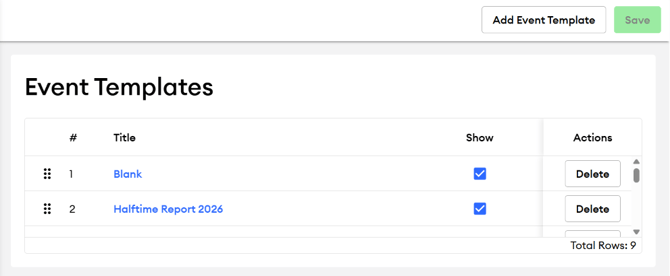
⛔ Clicking Delete permanently removes a template and can’t be undone. If you might want to use a template again later, uncheck Show instead.
What Your Subscribers Will See
When an advisor creates a new event, your agency’s templates appear at the top of the Select an Event Theme section, before FMG’s event templates.
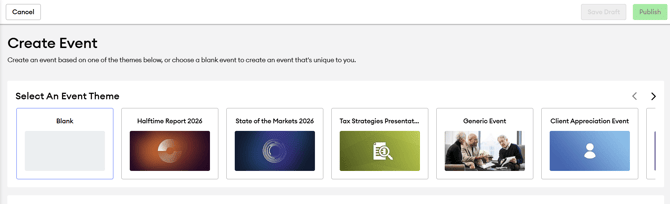
Here’s how advisor subscribers use them:
- The advisor selects your template, and the event details you set up fill in automatically.
- The advisor enters the required details, like the event date and location.
- The advisor publishes the event, which submits it for compliance review.
- Once the event is approved, any promotional sequences linked to the template will become available for the advisor to use.
Advisors can edit any of the pre-filled details before they submit the event for compliance.
Compliance Review for Event Templates
- Events created from a template always go through compliance review, even if the advisor doesn’t change any of the pre-filled details. Event templates can’t be pre-approved.
- Promotional sequences can be pre-approved: If an advisor uses a pre-approved sequence without changes, it won’t need additional review. If they edit the content, the changes are submitted to compliance when they schedule it.
Frequently Asked Questions
Do advisors still need compliance approval when using our event templates?
Yes. Templates fill in event details for your advisors, but every event still goes through compliance review before it’s live on the advisor’s website.
Can we hide a template we no longer want advisors to use?
Yes. Uncheck the Show box next to the template and click Save. This removes it from your advisors’ event builder without deleting it from your admin.
Can advisors edit the promotional emails and social posts linked to a template?
Yes. Keep in mind that if the content was pre-approved, any edits will be submitted to compliance when the advisor schedules it.
Will our advisors still see FMG’s event templates?
Yes. Your templates appear first, followed by FMG’s templates.