
Note: This article is only applicable to Publisher users.
In this article, we will cover how to manage and create agency social media posts.
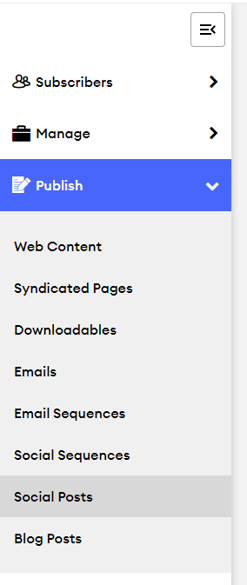
- In your Publisher Admin, navigate to the Publish tab, then select Social Posts.
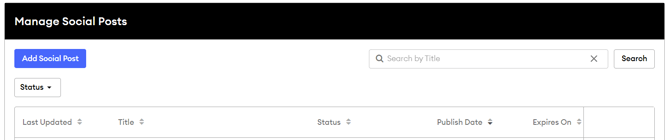
- On this page, you can manage all available social posts in your agency. Use the Status filter or the Search Bar to find specific social media posts.
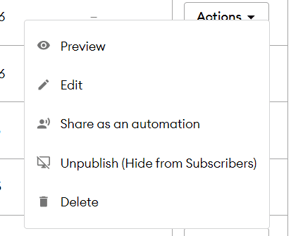
- To manage a single post, select the Actions drop-down menu next to the post to Preview, Edit, Share as an automation, Unpublish, or Delete it.
- To create a new post, select the Add Social Post button.
- Add Content Library Details for the Post:
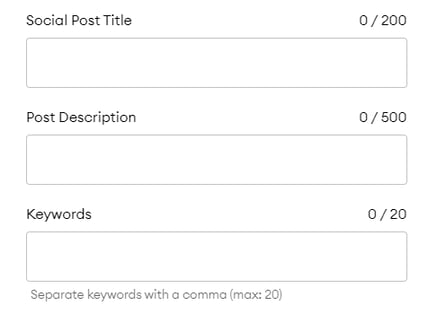
- Social Post Title: This title displays in the Content Library for Subscribers
- Post Description: This description can be used to explain the post to Subscribers in the Content Library
- Keywords: Add keywords to make the post easier to find in the Content Library
- Add Publishing Preferences:
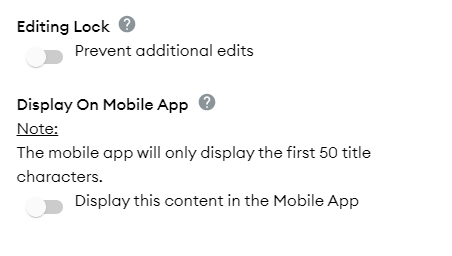
- Editing Lock (Premium Feature): Toggle this on to prevent users from making edits to a social post
- Display on Mobile App: Toggle this on if you want this post to show up in the FMG Mobile App for subscribers.
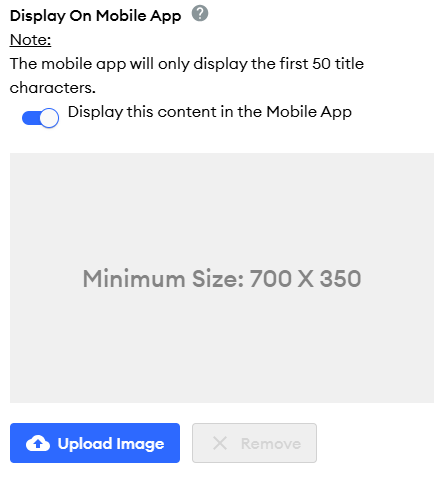
- 💡This option will also allow you to upload a thumbnail image that will display in the Content Library on both the mobile app and web app.
- Network-Specific Posts (Agency Feature): Depending on your Agency, you may be able to control which social media networks this content can be shared on. Click here to learn more.
- Add Publish Settings:
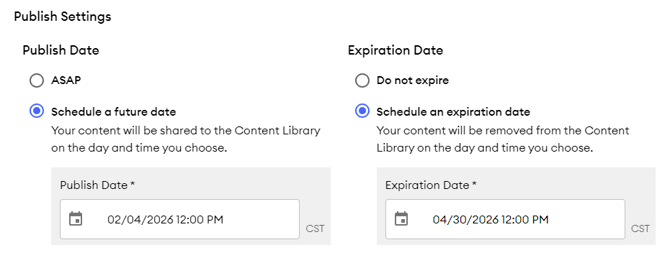
- Publish Date: Set a date/time for when this social post should display in the Content Library for subscribers.
- Expiration Date: Set a date/time this post will be automatically removed from the Content Library for subscribers. Content will not be permanently deleted.
- Add Social Post Content: Enter the content for the social post, including any visuals or images.
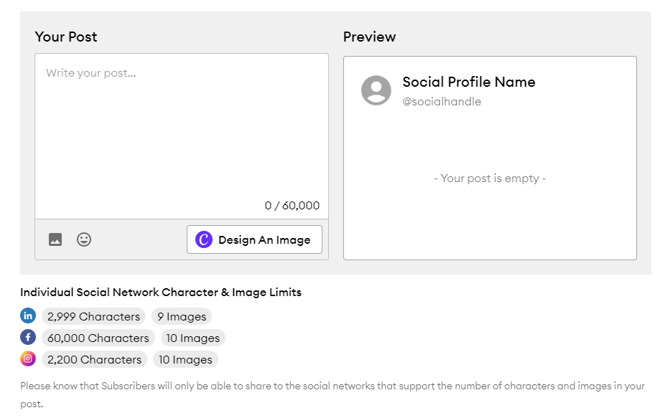
- When you're done, select Add Post to publish the social media post.