
As a Compliance Team Member Admin Admin, you have full access to manage your organization’s compliance team members. This includes adding, editing, deactivating, and impersonating compliance users directly within your admin interface. These controls are available through the Team Management area once the Team Member Management role has been assigned to you by FMG.
Accessing Team Management
-
Log in to your FMG admin account.
-
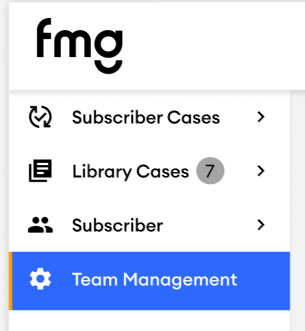
Select “Team Management” from the left-hand navigation menu
-
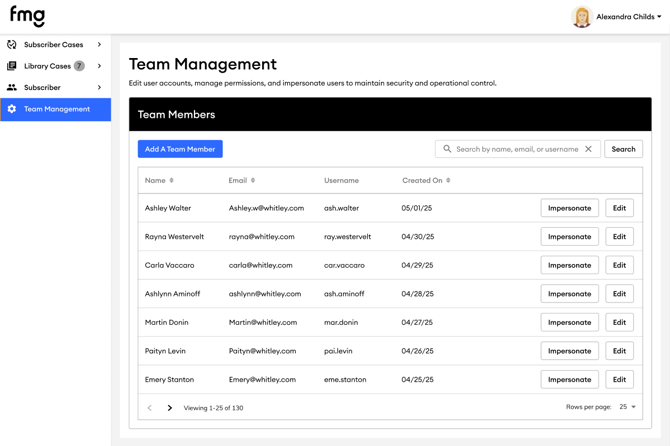
You’ll see a grid view displaying all users designated under your compliance team. You can search for users by name, email, or username.
Adding a Team Member
To onboard a new compliance user:
-
Click “Add a Team Member”
-
Enter required details such as:
-
Name
-
Email address
-
Username
-
SSO ID (if applicable)
-
-
Assign appropriate roles from the available list.
-
Assign appropriate compliance queues from the available options. (if applicable)
-
Save your changes and send the user an invite.
Editing or Removing a User
To modify or deactivate an existing user:
-
Locate the team member in the grid view.
-
Click “Edit” to update details like name, username, or email.
-
Adjust roles, resend login invitations, or deactivate the account if necessary.
-
Changes apply instantly across your compliance system.
Impersonating a User
The Impersonate function allows you to view the platform exactly as another compliance user, an essential tool for troubleshooting access or configuration issues. Select “Impersonate” next to a user’s name, and you’ll instantly switch to their perspective.